Free business automation guide
Free iPhone SMS Automation for Business: QR-to-Text Guide
A simple way for realtors, painters, barbers, and other business owners to let customers start a text conversation from a QR code—without asking anyone to install a new app.
iPhone SMS automation can solve a common small-business problem: a customer wants information now, but the owner cannot stop to type the same reply again. The customer may be standing beside a property sign, looking at a painter’s work, or sitting in a barber’s chair.
Pain: the customer sees a phone number but waits until later, forgets the details, or never reaches out. Fix: let the customer scan a reusable QR, review a message already written for them, and tap Send. Your iPhone recognizes the message and prepares the reply you saved. Result: the conversation starts with the right context and less typing for both people.
The free version does not replace the Messages app and does not send a customer’s text without permission. It makes the first conversation easier. The customer still chooses to send the message, and the owner can review the prepared reply before sending it back.
The short version
Scan. Send. Reply.
The customer starts the conversation, so your business gets a real phone number and a clear reason for the message.
- 1. Scan: the customer points the camera at your QR.
- 2. Send: Messages opens with your number and a helpful text ready.
- 3. Reply: your iPhone prepares the saved response for that sign or offer.
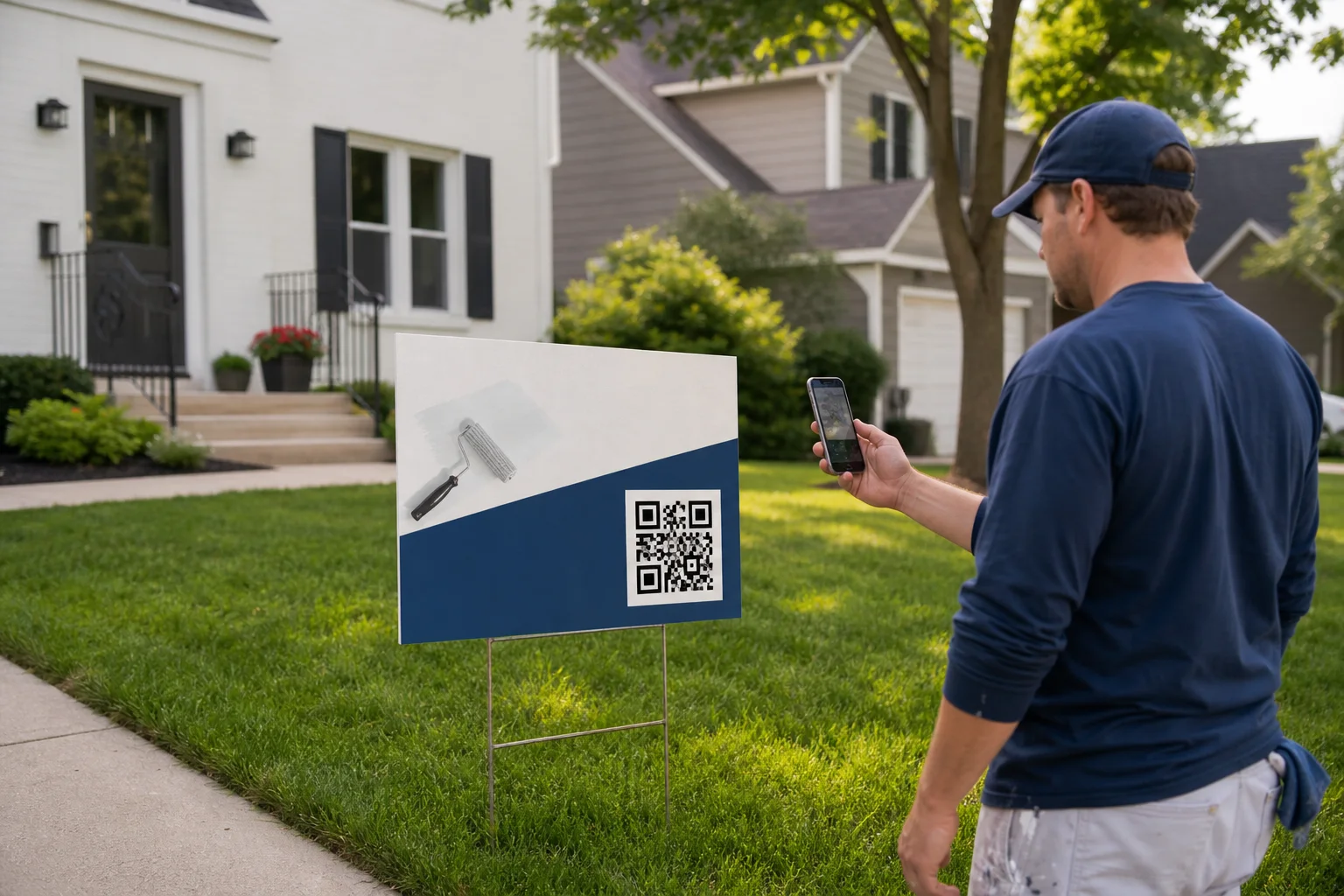
Why business texts get lost before the conversation starts
A phone number on a sign asks the customer to do several things: remember the number, open Messages, type it correctly, decide what to say, and explain where they saw the business. Each step looks small, but together they create enough friction for a good lead to disappear.
A generic website link can create the same problem. The customer opens the home page, searches for the right listing or service, and then looks for a contact button. The business had attention for a few seconds and turned it into a scavenger hunt.
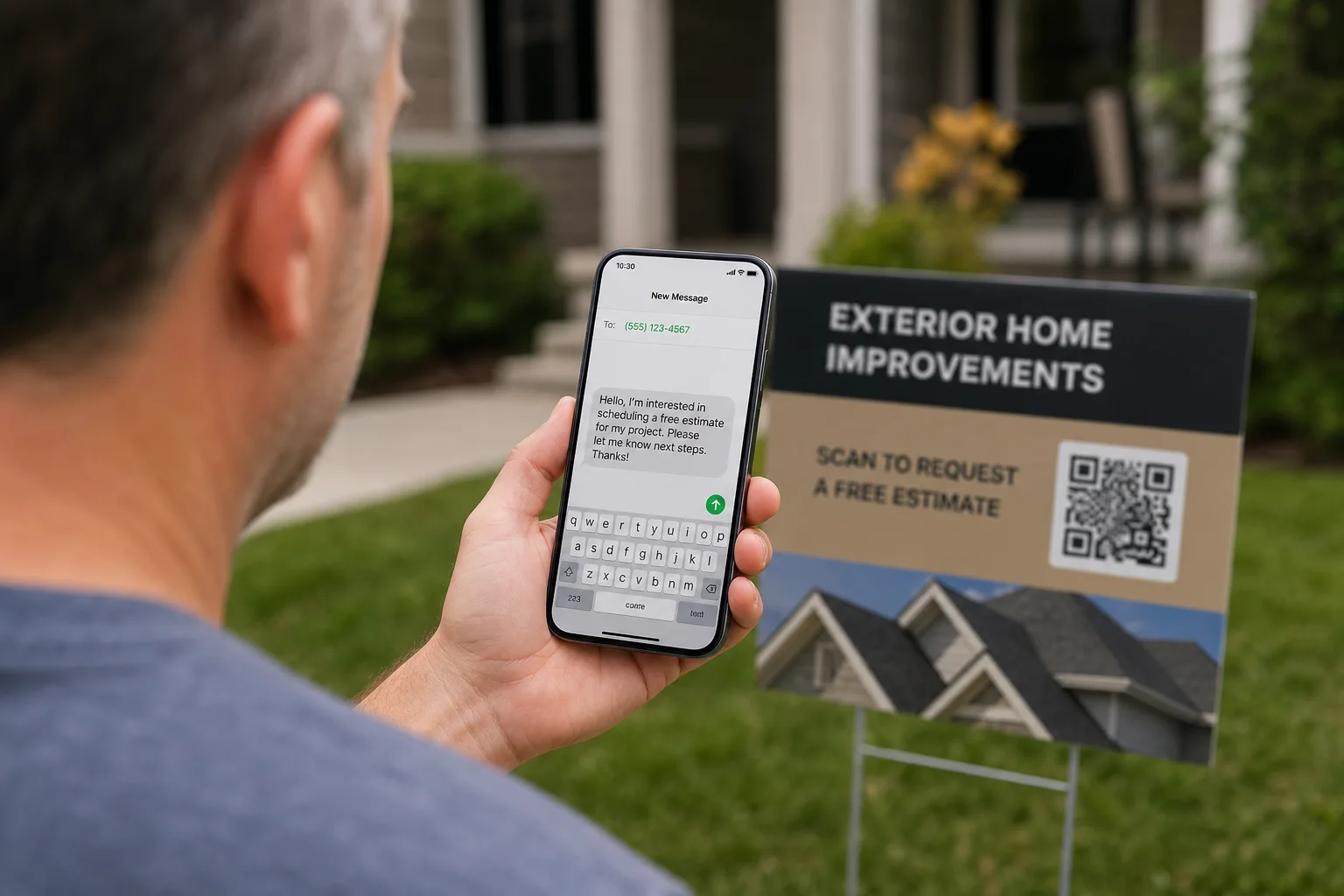
A QR code text message removes those early decisions. The scan can prepare a sentence such as, “Hi, I saw your 5144 German listing and would like more information.” That message tells the realtor which property created the lead. For a painter it can say, “I saw your project nearby and would like an estimate.” The owner starts with context instead of asking the customer to repeat it.
How free iPhone SMS automation works
The customer side is intentionally simple. Their phone camera reads the QR and opens Messages with your business number and the first message already filled in. They can read it, change it, or cancel. Nothing is sent until they tap Send.
On the business side, Apple Shortcuts can use a Message trigger. Apple’s guide explains that a communication trigger can react when an incoming message contains a chosen phrase. The owner creates one personal automation on the iPhone and connects it to the Sowynet shortcut. The automation is attached to that phone, so another team member who wants the same behavior must set it up on their own device.
When the message arrives, the Sowynet shortcut reads the short name carried in the message. It looks up the reply saved for that QR and prepares it for the owner. The reply can include the full listing page, estimate form, booking link, payment page, review page, or any other public link the owner placed in the saved message.
For Apple’s current options and device-specific wording, check the official communication triggers guide for Shortcuts.
Set up the QR and iPhone shortcut in the right order
Start with the customer message, not the technology. Ask what someone should say after seeing the sign. A strong message names the source and the next need. “I would like more information” is useful. “I saw the Oak Street sign and would like a showing” is better because it tells the owner what to send back.
- Open the free Sowynet QR generator.
- Give the QR a plain name, such as “5144 German,” “front yard,” or “chair three.”
- Enter the phone number that should receive customer texts.
- Write the message customers should send. Include the QR name so your iPhone knows which reply to prepare.
- Write the complete reply your iPhone should prepare. Paste the listing, booking, payment, or review link directly into that reply.
- Confirm the phone number, save the QR, and add the shared Sowynet shortcut to your iPhone.
- Create one Message automation that runs the shared shortcut when a Sowynet QR message arrives.
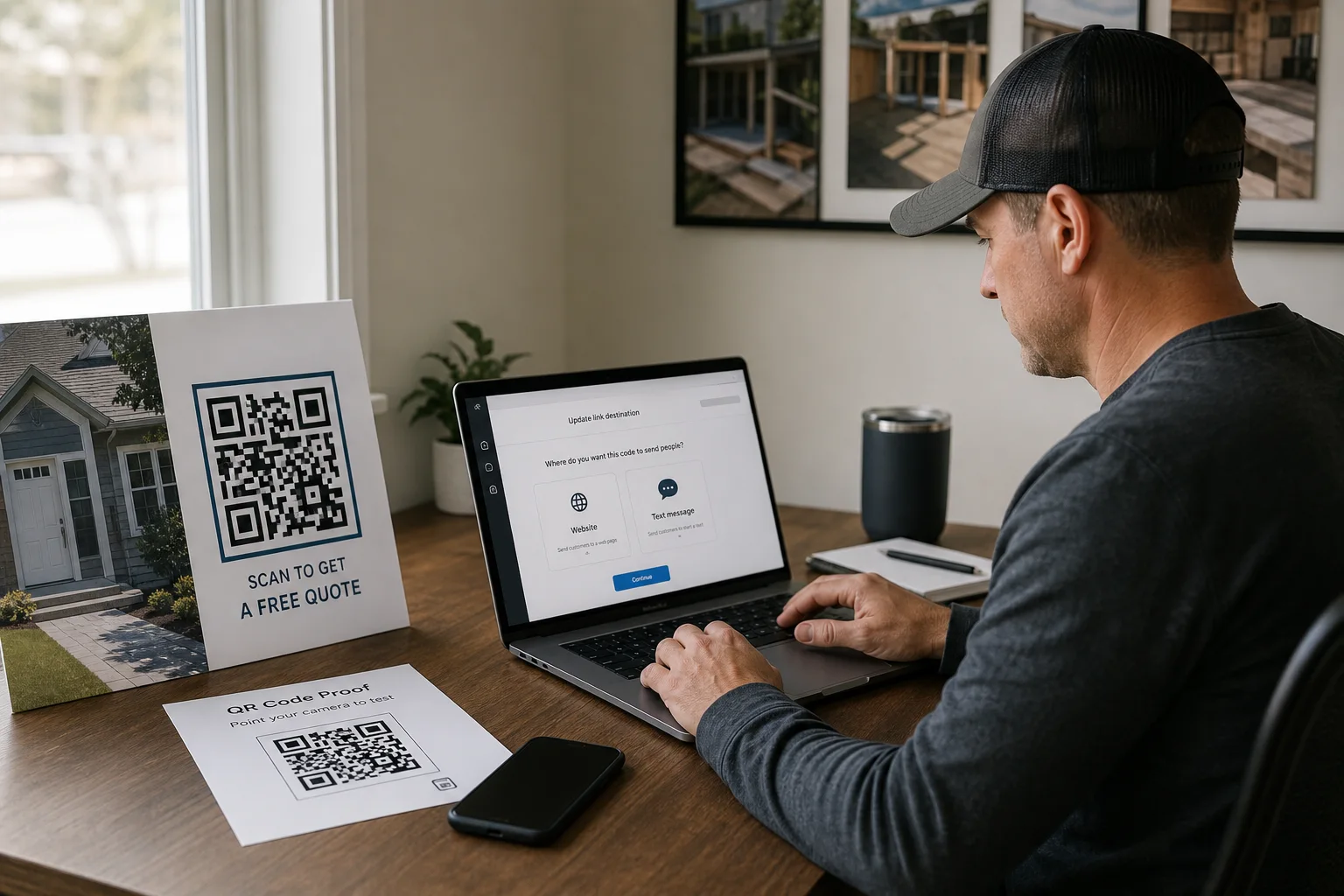
- Scan the code from another phone and test the complete conversation before printing.
Keep the message natural. Customers should understand what will happen before they send it. Avoid vague codes that look like spam and avoid stuffing several offers into one reply.
One iPhone automation can support many signs
You can build this by hand without Sowynet. The problem appears when a business has more than one listing, service, barber, table, or location. A separate keyword and personal automation for every campaign becomes hard to maintain. The iPhone fills with nearly identical rules, and each change must be repeated in the right place.
Sowynet separates the phone setup from the campaign content. The phone keeps one shared automation. Each QR has its own short name, customer message, and saved reply. When a new listing is added, the owner creates the QR and response in Sowynet instead of building another long automation on the phone.
This also protects printed materials. The QR points to a Sowynet short link rather than locking the sign to one final page. If the listing link changes or the owner wants a different reply, the content can change while the printed QR stays in place. The free plan can be changed once each week; paid Smart Links plans can offer more links, unlimited changes, and scan analytics.
Business examples that make the automation useful
Realtors
Give every property sign its own QR name. A buyer sends the prepared message, and the reply includes that listing page or showing instructions.
Painters and contractors
Turn an active job site into proof. A neighbor scans, asks for an estimate, and receives the quote page or project gallery.
Barbers and salons
Use one QR per chair or professional. The reply can carry the right booking page, tip page, or review link.
Restaurants and events
Use table tents or flyers to start catering, reservation, private-event, or offer conversations with the source already named.
For sign design, reuse, and scan placement, read the related guide to a dynamic QR code for yard signs. For the larger lead workflow, see intake automation for small business.
What this free SMS automation does not do
It does not send a message from the customer’s phone without approval. It does not make an anonymous QR scan equal consent for marketing. It does not guarantee that every carrier, iPhone version, or device setting behaves the same way. Test on the exact phone that will run the automation and review it after major iOS updates.
The free system is best for low-volume, owner-reviewed replies. If the business needs a shared inbox, a dedicated business number, team assignments, automatic qualification, consent records, booking, or AI-assisted replies, that belongs in a paid workspace with the right controls. The simple QR remains useful because it can become the entrance to that larger system without changing the printed sign.
For a broader follow-up plan, read automated follow-up systems for missed calls and web leads. The goal is not to automate every conversation. The goal is to make the next helpful response easier and faster.
Try the free workflow
Create your QR, customer message, and saved iPhone reply
Start with one reusable QR. Add it to a sign, card, window, or social post, then test the conversation from another phone.
Create my free QRFrequently asked questions
Questions about iPhone SMS automation
Can an iPhone automatically reply when a customer sends a text?
An iPhone personal automation can react to a message that contains a chosen phrase. In this Sowynet flow, the automation prepares the saved reply so the owner can review it and tap Send.
Does the customer need to install an app?
No. The customer scans with the phone camera, reviews the text already prepared in Messages, and taps Send.
Can I use the same iPhone automation for several QR codes?
Yes. A Sowynet QR includes its own short name in the customer message. One Sowynet shortcut can use that name to find the correct saved reply for each sign or campaign.
Does scanning the QR send a text automatically?
No. The scan opens a ready-to-send message. The customer stays in control and must tap Send.
Can I change the reply without printing a new QR?
Yes. The QR points to a Sowynet short link. You can update its customer message and saved reply while keeping the same printed code, subject to the limits of your plan.
Quick summary
The practical version
Pain: customers see the business but do not want to type, search, or explain what they need. Fix: a reusable QR prepares their first text, and one iPhone automation prepares the reply saved for that QR. Result: faster conversations with better context and no new app for the customer.
Loading related resources...
Loading recent posts...